Paragraph对象有一些以"Indent"打头或结尾的属性或方法,使用它们设置段落的缩进。这些属性或方法如表4-1中所示。
表4-1 设置段落缩进的方法
| 属性或方法 | 说 明 |
|---|---|
| Indent | 为一个或多个段落增加一个级别的缩进 |
| IndentCharWidth | 将段落缩进指定的字符数 |
| IndentFirstLineCharWidth | 将一个或多个段落的首行缩进指定的字符数 |
| TabIndent | 将指定段落的左缩进量设置为指定的制表位数 |
| TabHangingIndent | 将悬挂缩进量设置为指定的制表位数 |
| MirrorIndents | 返回或设置一个整数,表示左右缩进宽度是否相同,布尔值 |
| LeftIndent | 返回或设置一个浮点数,表示指定段落左边的缩进量 |
| RightIndent | 返回或设置一个浮点数,表示指定段落右边的缩进量 |
| Outdent | 为一个或多个段落删除一个级别的缩进 |
下面打开文档test3.docx,分别对文档中的3个段落进行缩进设置。对第1个段落内缩两个缩进级别,对第2个段落缩进5个字符,对第3个段落缩进2个表格位。
code.vba
Sub Test()
  '整体缩进
  Dim doc As Document
  Set doc = Documents.Open("D:\test2.docx")
  Dim pg1 As Paragraph
  Set pg1 = doc.Paragraphs(2)
  'pg1.Indent
  'pg1.Indent
  'pg1.Outdent
  'pg1.IndentCharWidth 5
  pg1.TabIndent 2
End Sub
设置效果如图4-4所示。

图4-4 段落的缩进设置
下面的代码实现左右两侧的整体缩进,左侧缩进20磅,右侧缩进30磅。
code.vba
Sub Test2()
  '整体缩进2
  Dim doc As Document
  Set doc = Documents.Open("D:\test2.docx")
  Dim pg1 As Paragraph
  Set pg1 = doc.Paragraphs(2)
  pg1.LeftIndent = 20
  pg1.RightIndent = 30
End Sub
效果如图4-5所示。
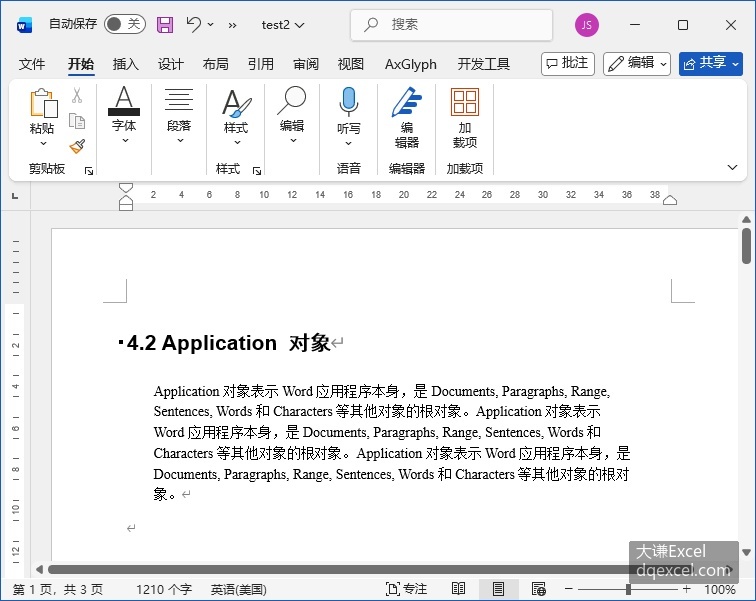
图4-5
下面的代码实现首行缩进。首先用Range对象的Text属性输入一个字符串,然后定义首行缩进为20磅。
code.vba
Sub Test3()
  '首行缩进
  Dim doc As Document
  Set doc = Documents("25 段落缩进")
  Dim pg As Paragraph
  Set pg = doc.Paragraphs(1)
  pg.Range.Text = "首行缩进首行缩进首行缩进首行缩进首行缩进首行缩进首行缩进首行缩进首行缩进首行缩进首行缩进首行缩进首行缩进首行缩进首行缩进首行缩进首行缩进首行缩进"
  pg.FirstLineIndent = 20    '设置为正值,不累加
End Sub
效果如图4-6所示。
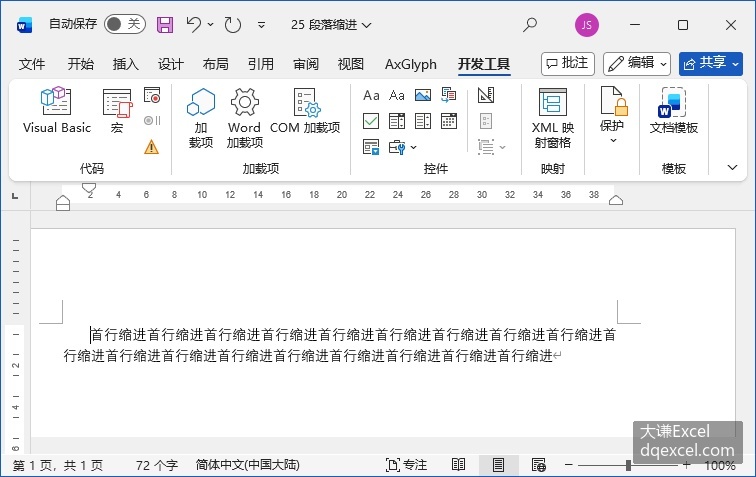
图4-6
下面的代码用累加缩进的方式实现首航缩进。
code.vba
Sub Test4()
  '首行缩进
  Dim doc As Document
  Set doc = Documents("25 段落缩进")
  Dim pg As Paragraph
  Set pg = doc.Paragraphs(1)
  pg.Range.Text = "首行缩进首行缩进首行缩进首行缩进首行缩进首行缩进首行缩进首行缩进首行缩进首行缩进首行缩进首行缩进首行缩进首行缩进首行缩进首行缩进首行缩进首行缩进"
  pg.IndentFirstLineCharWidth 2    '累加缩进
End Sub
效果与图4-6中的相同。
下面的代码实现悬挂缩进。悬挂缩进是从第2行开始缩进。本例用段落对象的TabHangingIndent方法实现悬挂缩进。
code.vba
Sub Test5()
  '悬挂缩进
  Dim doc As Document
  Set doc = Documents("25 段落缩进")
  doc.Paragraphs(1).Range.Text = "悬挂缩进悬挂缩进悬挂缩进悬挂缩进悬挂缩进悬挂缩进悬挂缩进悬挂缩进悬挂缩进悬挂缩进悬挂缩进悬挂缩进悬挂缩进悬挂缩进悬挂缩进悬挂缩进悬挂缩进悬挂缩进悬挂缩进悬挂缩进悬挂缩进悬挂缩进悬挂缩进悬挂缩进悬挂缩进悬挂缩进悬挂缩进悬挂缩进悬挂缩进悬挂缩进悬挂缩进悬挂缩进悬挂缩进悬挂缩进"
  doc.Paragraphs(1).TabHangingIndent 1
End Sub
效果如图4-7所示。
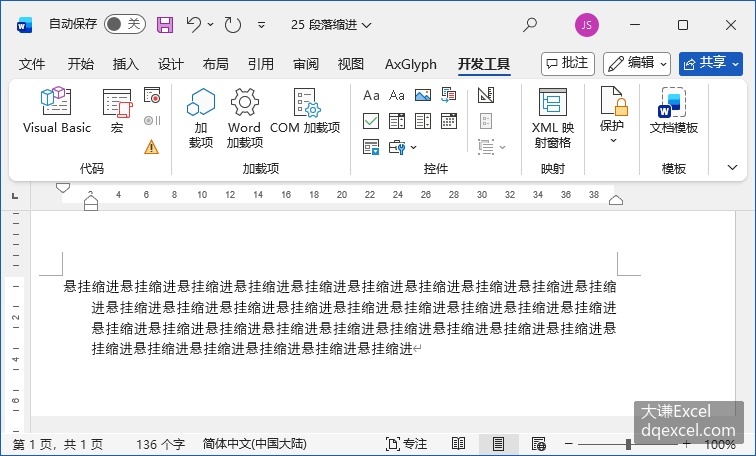
图4-7
下面的代码通过将段落对象的FirstLineIndent属性的值设置为负数来实现悬挂缩进。
code.vba
Sub Test6()
  '悬挂缩进
  Dim doc As Document
  Set doc = Documents("25 段落缩进")
  Dim pg As Paragraph
  Set pg = doc.Paragraphs(1)
  pg.Range.Text = "悬挂缩进悬挂缩进悬挂缩进悬挂缩进悬挂缩进悬挂缩进悬挂缩进悬挂缩进悬挂缩进悬挂缩进悬挂缩进悬挂缩进悬挂缩进悬挂缩进悬挂缩进悬挂缩进悬挂缩进悬挂缩进悬挂缩进悬挂缩进悬挂缩进悬挂缩进悬挂缩进悬挂缩进悬挂缩进悬挂缩进悬挂缩进悬挂缩进悬挂缩进悬挂缩进悬挂缩进悬挂缩进悬挂缩进悬挂缩进"
  pg.FirstLineIndent = -20  '设置为负值
  pg.LeftIndent = 20
End Sub
效果与图4-7的类似。